

XFCE
XFCE is a lightweight and modular desktop environment currently based on GTK 3.
In Athena OS, XFCE has been deployed in different environments.
XFCE Picom
Section titled “XFCE Picom”The environment is pretty simple and characterized by a lateral vertical bar that provides access to all applications and settings.
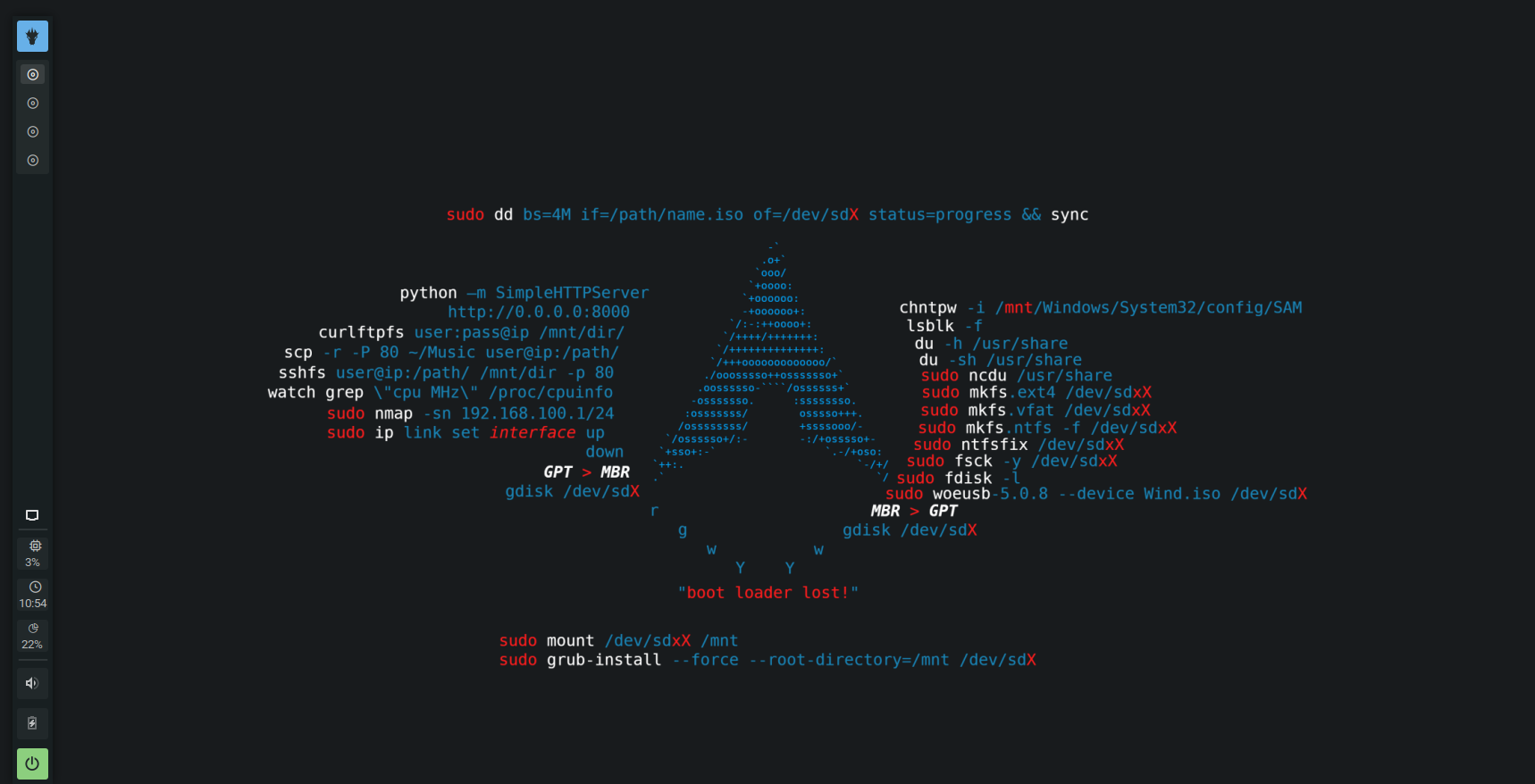
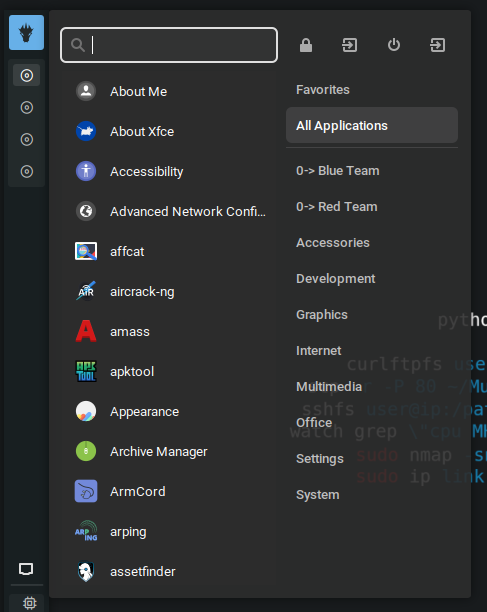
The XFCE lateral bar is composed of a menu on top of it that allows you to access to several applications.
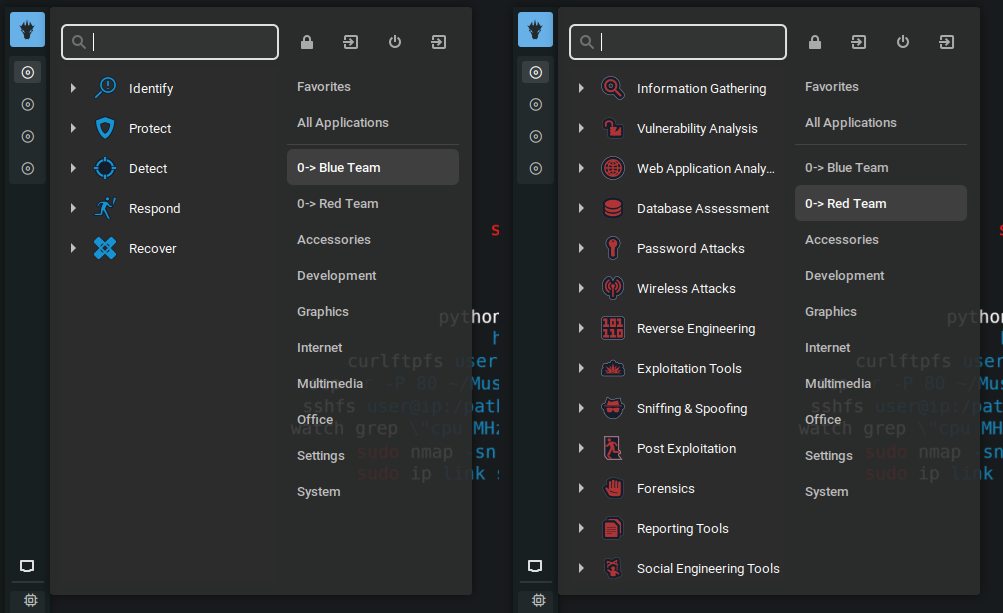
Here, you can find Blue and Red Team categories that provide access to Cyber Security tools.
Following the menu button, you can find circle icons that represent workspaces where to organize your work.
On the bottom side of the bar, several elements are shown as network connection, system metrics, audio settings, battery and power menu.
XFCE Refined
Section titled “XFCE Refined”Unlike the previous environment, it is composed of a top bar that provides access to all applications and settings, and a menu dock at bottom side.
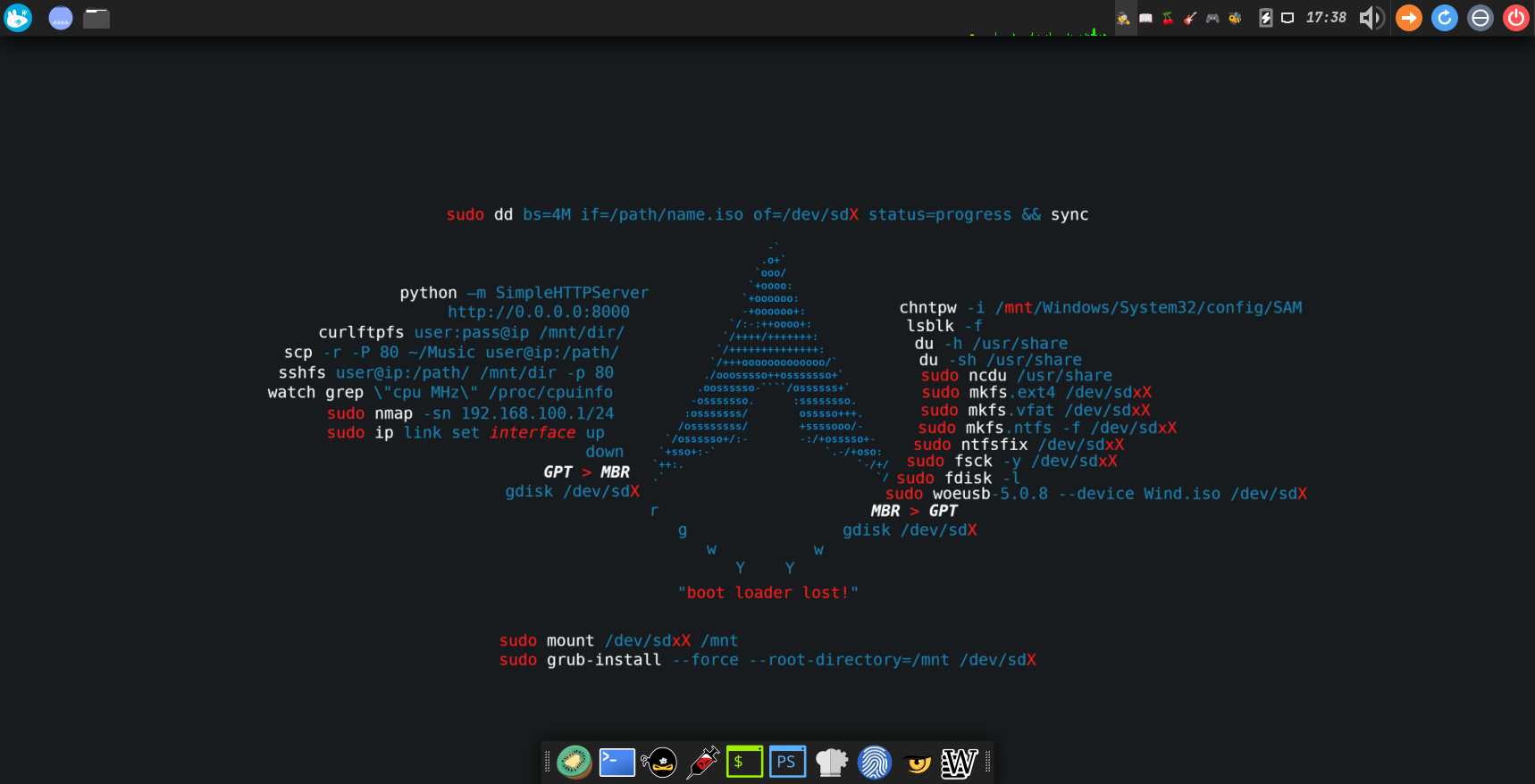
The XFCE top bar is composed of a menu button on left side that allows you to access to several applications.

Here, you can find Blue and Red Team categories that provide access to Cyber Security tools.
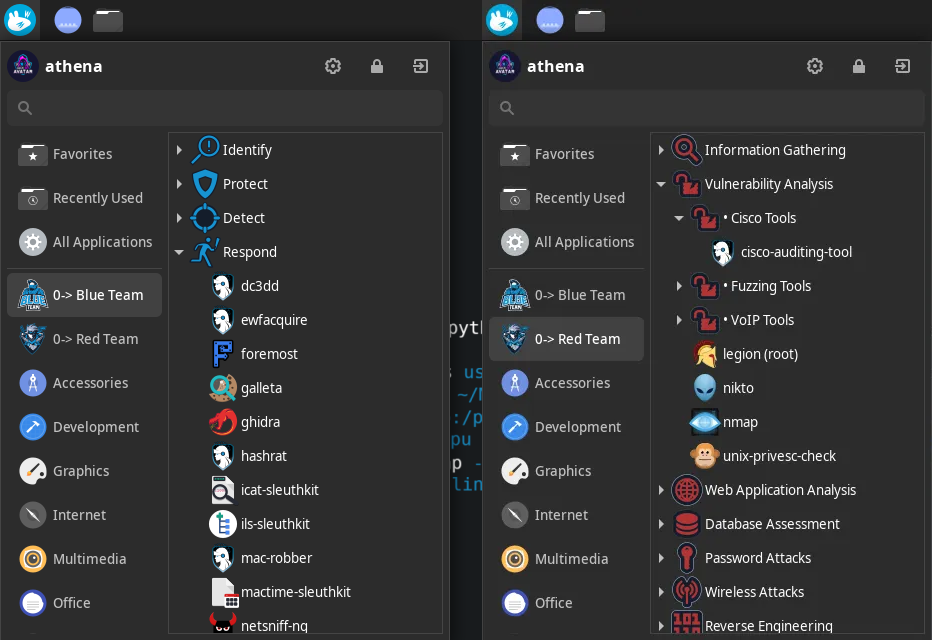
Following the menu button, you can find some shortcuts and, on the right side, system metrics diagrams, emoji icons that represent workspaces where to organize your work and, finally, several elements as network connection, system metrics, audio settings, battery and power menu.
On the bottom side of the environment, a menu dock is implemented in order to access quickly to the cyber resources you need for your hacking activity.

Desktop
Section titled “Desktop”The desktop in both of the XFCE environments is pretty simple in terms of elements. You have mainly a bar, a wallpaper and a sidebar on picom environment.
By right-click on the desktop, you can access to menu applications.
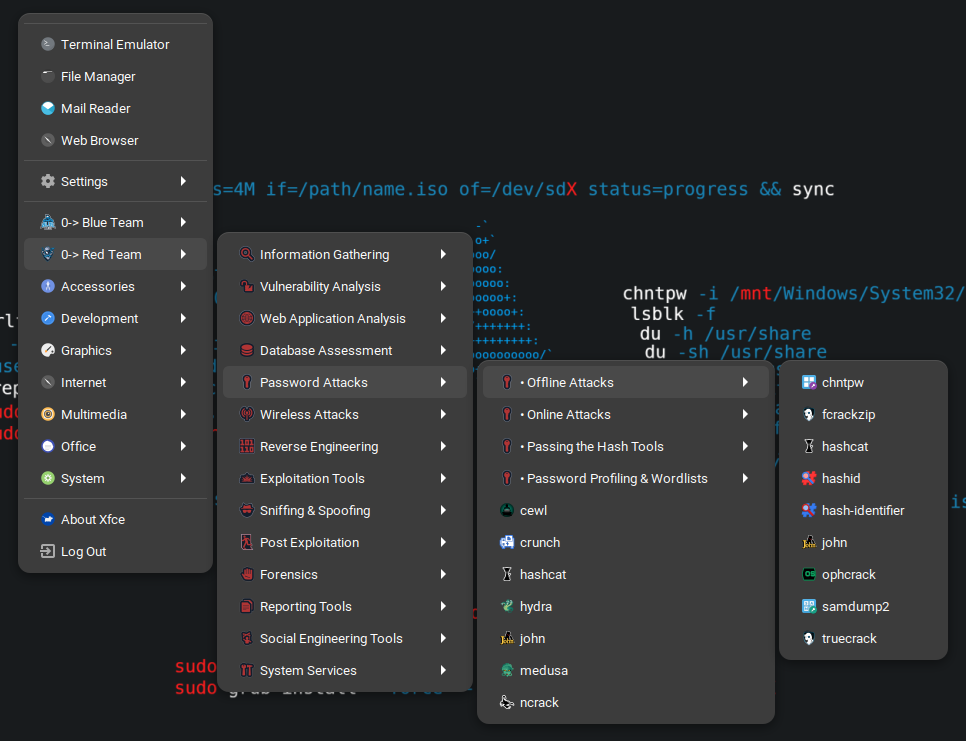
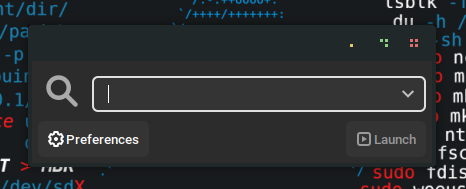
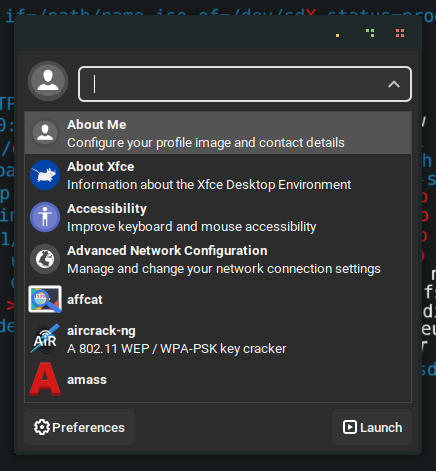
You can access applications also by calling the App Finder in two ways:
Collapsed by ALT + F2
Extended by ALT + F3
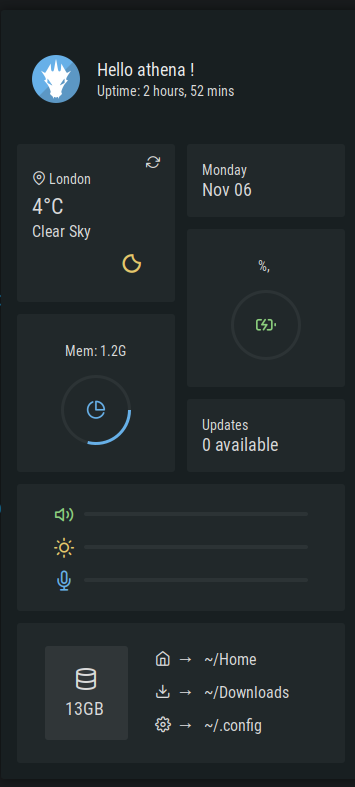
In XFCE Picom, by pressing Super + S, you can access to the desktop sidebar showing several information about the system.
Keybindings
Section titled “Keybindings”Here are reported some useful keybindings set by default in Athena OS XFCE.
| Keybind | Description |
|---|---|
| Super + Enter | Open the Terminal |
| Super + E | Open the File Manager |
| Super + L | Lock the screen |
| Super + Q | Power Menu |
| Super + A | Open ArmCord |
| Super + B | Open browser |
| Super + S | Open sidebar |
| ALT + Super + S | Open Orca |
| ALT + F2 | Open collapsed App Finder |
| ALT + F3 | Open expanded App Finder |
| Super + P | Open Display settings |
| ALT + F1 | Popup Desktop application menu |
| Open screenshot menu | |
| Shift + Print | Select region to take screenshot |
| ALT + Print | Take screenshot of active window |
| CTRL + Shift + Esc | Open Task Manager |
| CTRL + ALT + Delete | Logout |