

KDE Plasma
KDE Plasma is a collection of libraries and frameworks (KDE Frameworks) and several applications (KDE Applications) as well.
In Athena OS, KDE Plasma provides the essential elements to perform your activities.
Desktop
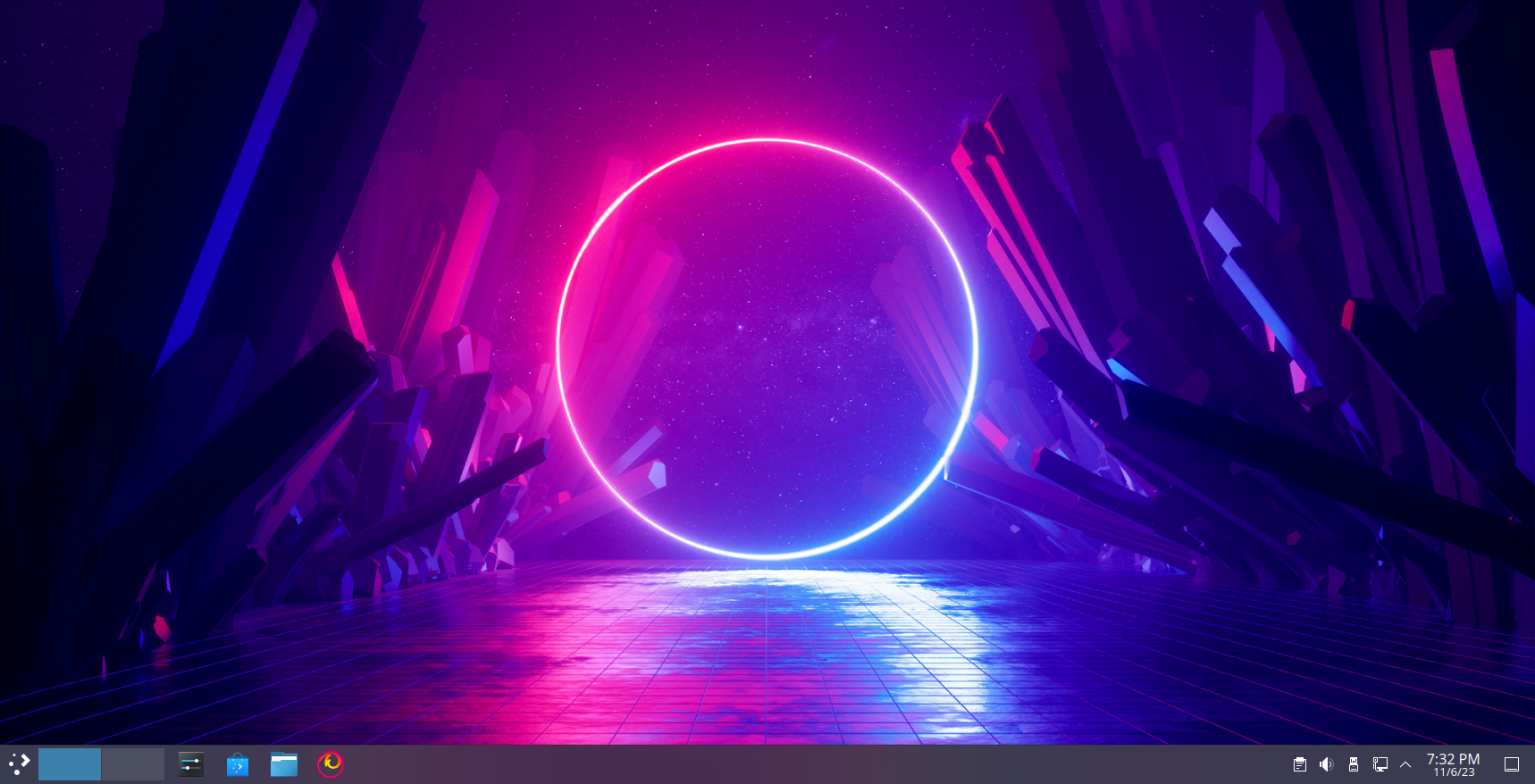
Section titled “Desktop”The environment is pretty characterized by a bottom bar that provides access to all applications and settings.
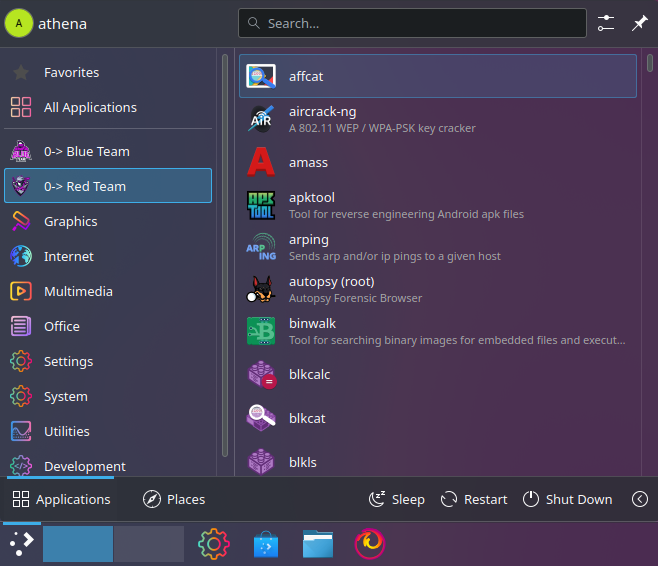
It allows you to access to several applications as well as cyber resources and tools.
On the right side of the bar, several elements are shown as network connection, audio settings, battery, calendar and other useful stuff.
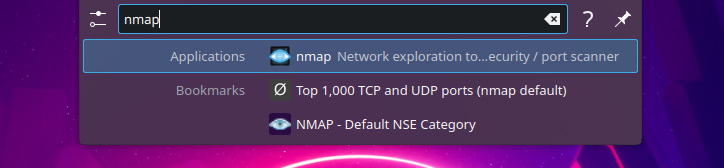
In KDE Plasma you can quickly access to applications and browser bookmarks by KRunner invoked by ALT + Space.
Kando menu
Section titled “Kando menu”Kando cannot directly bind global shortcuts on KDE Wayland that can be used for invoking Kando menu. To set a shortcut to invoke the menu, right-click on Kando icon on bottom-right -> Show settings -> in Shortcut ID type a meaningful Shortcut ID, for example Invoke, then, open System Settings of KDE -> find for Shortcuts -> find for Kando and you will see an empty INVOKE entry, click on Add… and by your keyboard, press the keys that will be used to invoke Kando menu, for example CTRL+SPACE.
Keybindings
Section titled “Keybindings”Here are reported some useful keybindings set by default in Athena OS KDE Plasma.
Application and System Management
Section titled “Application and System Management”| Keybind | Description |
|---|---|
| Super + ALT + S | Open Accessibility |
| Super + E | Open the File Manager |
| ALT + F1 | Launch Application Launcher |
| ALT + Space | Open KRunner |
| ALT + Shift + F2 | Open KRunner with clipboard content |
| Super + Q | Open Activity Switcher |
| Open screenshot menu | |
| Super + Print | Take screenshot of active window |
| Shift + Print | Take screenshot of entire desktop |
| Super + Shift + Print | Select region to take screenshot |
| Super + CTRL + Print | Take screenshot of window under cursor |
| CTRL + Esc | Open Task Manager |
| Super + V | Show clipboard items |
| Super + P | Switch display |
| Super + ALT + K | Switch keyboard layout |
| CTRL + ALT + Delete | Logout |
| Super + L | Lock the screen |
Desktop and Window Management
Section titled “Desktop and Window Management”| Keybind | Description |
|---|---|
| ALT + F4 | Close window |
| Super + CTRL + Esc | Kill window |
| Super + PgUp | Maximize window |
| Super + PgDown | Minimize window |
| Super + F5 | Move mouse to the focus |
| Super + F6 | Move mouse to the center |
| Super + D | Peek at Desktop |
| Super + {Left, Down, Up, Right} | Quick tile window to the specified direction |
| Super + ALT + {Left, Down, Up, Right} | Switch to window to the specified direction |
| Super + CTRL + {Left, Down, Up, Right} | Switch one workspace to the specified direction |
| Super + CTRL + Shift + {Left, Down, Up, Right} | Move window to workspace to the specified direction |
| CTRL + {1-4} | Switch to the selected workspace |
| Super + F8 | Show workspace grid |
| ALT + Shift + F12 | Suspend compositing |
| Super + CTRL + I | Toggle Invert Effect |
| Super + CTRL + U | Toggle Invert Effect on window |
| Super + W | Toggle environment overview |
| Super + T | Toggle Tiles Editor |
| ALT + Tab | Walk through next window |
| ALT + Shift + Tab | Walk through previous window |
| Super + Shift + {Left, Right} | Move window to monitor to the specified direction |
| Super + = | Zoom In |
| Super + - | Zoom Out (use ‘dash’ key for minus character) |
| Super + 0 | Zoom to the actual size |
| CTRL + 10 | Show Desktop |